Related Topics
At BP Logix, we've added an AI chatbot service to the Documentation web site. We call it Process Director Assistant, and hope this service makes it easier to find answers to Process Director questions without having to perform a document search that might return many unwanted results, because traditional word searches can't understand the context of the term you're using to search.
 The AI Chat feature will accept questions and provide answers in any language.
It's NOT a Search box!
Unlike a search feature, which returns topics that contain a specific word or set of words, the chatbot is a conversational system, and expects conversational queries, as if you were chatting with a person, instead of a search engine. If you enter a generic search term like, "email attachment" or "dropdown" the chatbot won't be able to respond effectively. Just as the search feature might return many topics that contain the word "dropdown", the chatbot will not be able to determine exactly what you're asking, and while it will probably provide some response, it probably won't be the correct one. There are simply too many sources that use the term for the chatbot to understand what you're asking.
For the AI chatbot to work best, however, your query should be as specific as possible. For example: How do I configure a report Datasource? doesn't provide quite enough detail for the AI chatbot to know whether you want to know about the Data Sources tab of a Report definition, or about the Datasource object in general, and may return a different answer than you want. Comparatively, How do I configure the Data Sources tab of a report? provides better detail about the specifics you're looking for in the answer, and thus a more detailed and relevant response.
On the other hand, a query like, What custom variable sets the default database timeout? or Can you give me a code sample for nDBCommandTimeout? will generally return the correct answer, or in the case of the latter query, the code sample in the documentation.
The chatbot does track the conversation thread, so, once you've asked a question, you can also reference the URL of a specific documentation topic, or tell the chatbot you'd like information from a training webinar, during the conversation to receive a more specific answer from a more specific source topic. The chatbot also learns over time, so having a conversation often helps nail down the information you're looking for in a way that the initial query might not. It's not nearly as fast as entering a simple search query, but it does improve the quality of the final result.
Finally, the chatbot's answer for questions it can't understand is a canned response. Generally, the answer is phrased like:
"The context does not provide any information about X."
That isn't necessarily true. It doesn't mean the information isn't there. Actually, it may also mean that, but generally it means that the chatbot can't answer your query based on the information it was given in the query. It doesn't understand the context. This phrasing is imprecise, but it is, as mentioned previously, a standard, boilerplate response.
Chatbot Access
AI Chat is accessed via a small icon that appears at the bottom right corner of every page.

Clicking this icon opens a chatbot where you can enter your queries and receive a response, such as the one shown in the example below.
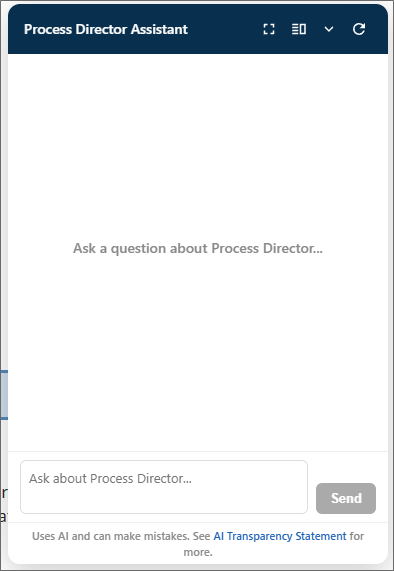
The the AI chatbot service has been trained on:
- all of the documentation topics that exist in the Process Director documentation.
- The content of the Process Director training courses.
You can ask a question about any topic that exists in the documentation or training webinars and, hopefully, receive a relevant and helpful response.
The AI chatbot has been trained only on the topics listed above, so questions that fall outside that scope can't be correctly answered. If you ask a question that's not covered in the documentation, the AI chatbot will respond with a message that tells you it cannot provide an answer in the given context—the "context" being the information on the Documentation web site.
Response Sources
Once the AI chatbot has answered your query, the bottom of the answer will contain a section labeled, Sources.
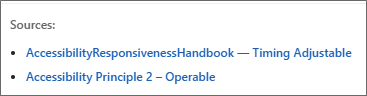
This section displays links to the documentation topics that were used to construct the answer the AI chatbot provided, and the number of source topics that were used to provide the response.
Chatbot Options
By default, the chatbot appears as a pop-up window in the bottom right corner of the screen. You can, however, change the display of the chatbot window, to make it dock to the side of the screen, and resize the docked window. The display options can be accessed via the icons on the right side of the chatbot title bar.

These icons provide the following options for displaying the chatbot window.
| Icon | Description |
|---|---|
 |
Maximize: This icon will maximize the chatbot window to a fullscreen mode. When activated, this mode will cover the contents of the current page. |

|
Restore: When maximized, this icon will return the chatbot window to its default size. |

|
Dock to side: This icon will transfer the chatbot window to a docked pane on the right side of the browser window that will appear alongside the page content. When docked, the pane is resizable. Resizing the docked pane will resize the page displayed on the left side of the screen. |

|
Minimize: This icon closes the chatbot window, and restores the icon on the bottom right corner of the page. |

|
New conversation: This icon clears the contents of the chatbox window to enable you to start a new conversation. |
Documentation Feedback and Questions
If you notice some way that this document can be improved, we're happy to hear your suggestions. Similarly, if you can't find an answer you're looking for, ask it via feedback. Simply click on the button below to provide us with your feedback or ask a question. Please remember, though, that not every issue can be addressed through documentation. So, if you have a specific technical issue with Process Director, please open a support ticket.